← Back to guide
Messages
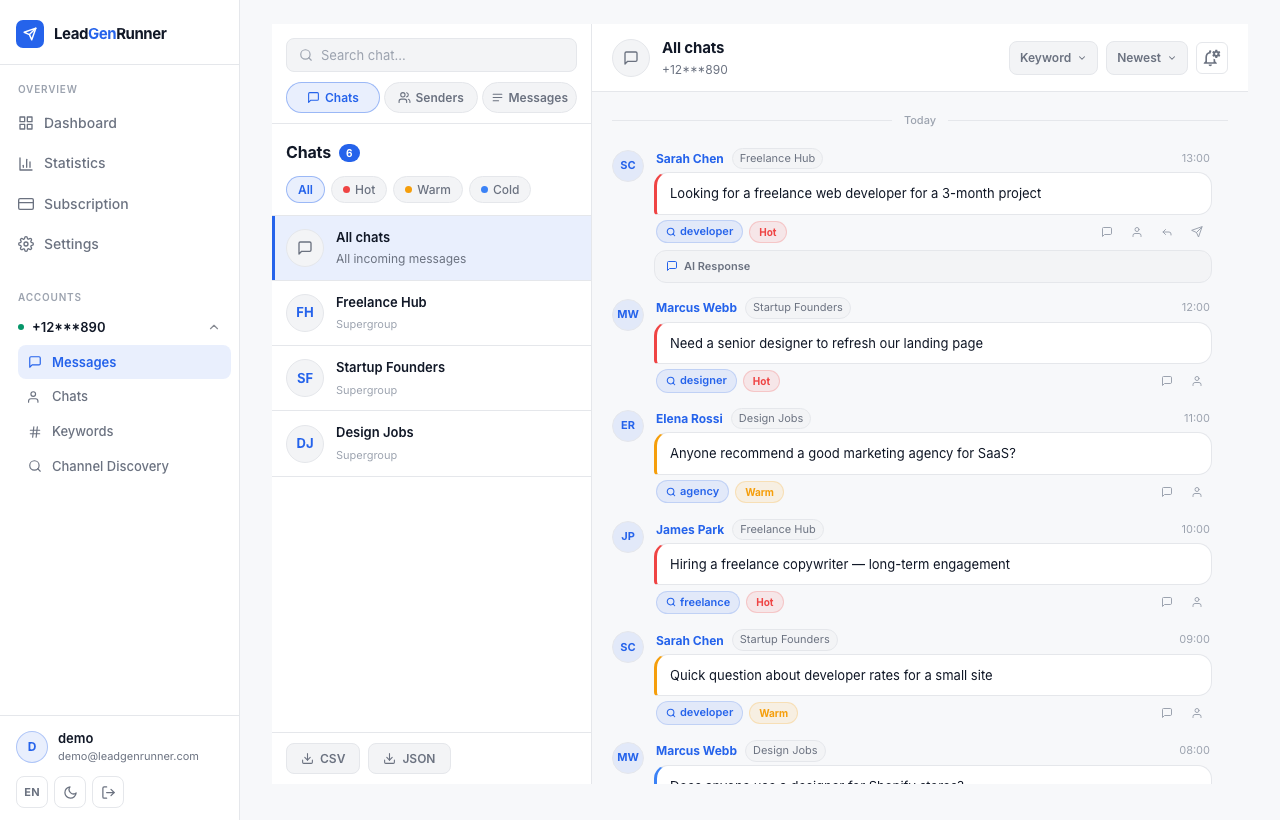
Every keyword match shows up as a chat bubble — just like a real inbox.
1
Step 1
A chat-style view of every matched lead
The Messages view is split in two: chats on the left, messages on the right.
2
Step 2
Open a lead to see who sent it and how to reply
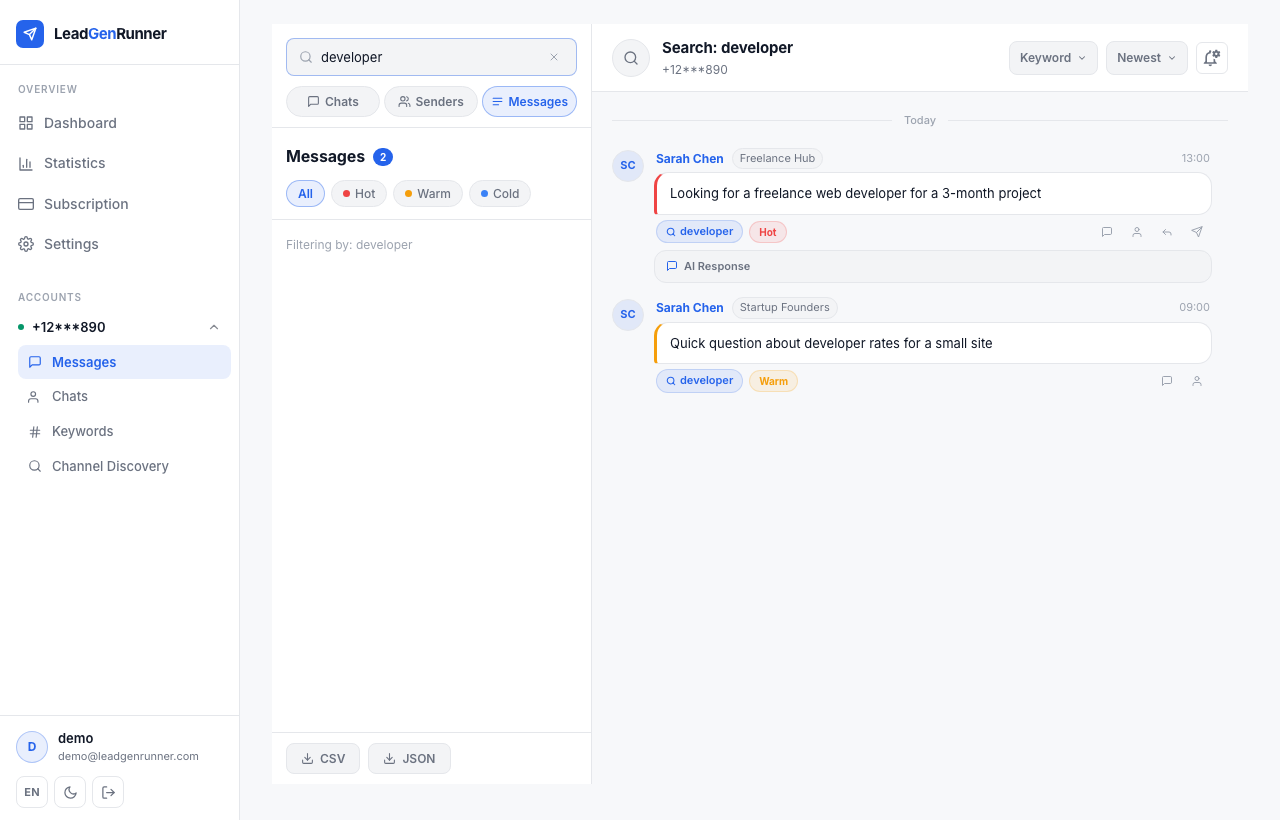
Click any message bubble to see the sender profile and the exact keyword that triggered the match.
3
Step 3
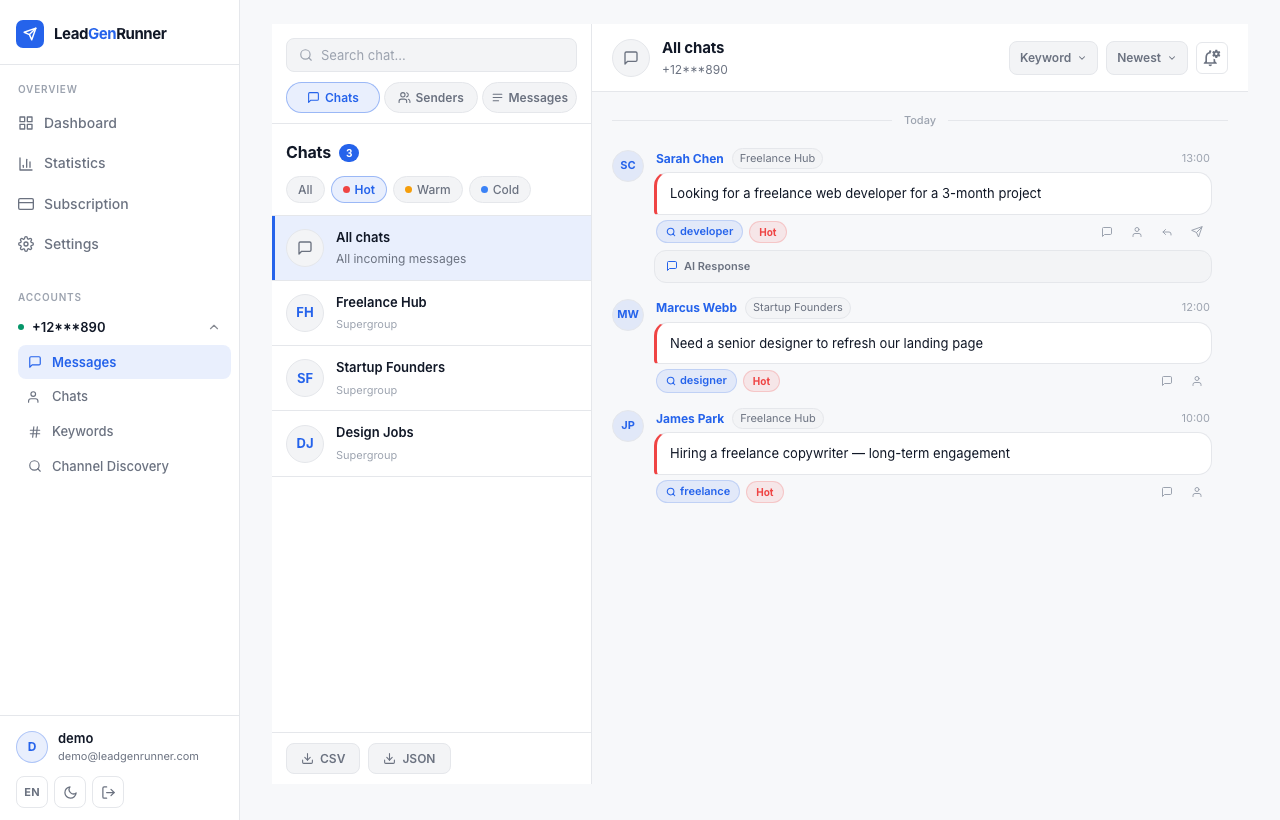
Filter instantly by classification
Tap the Hot, Warm or Cold chips to narrow the list.
4
Step 4
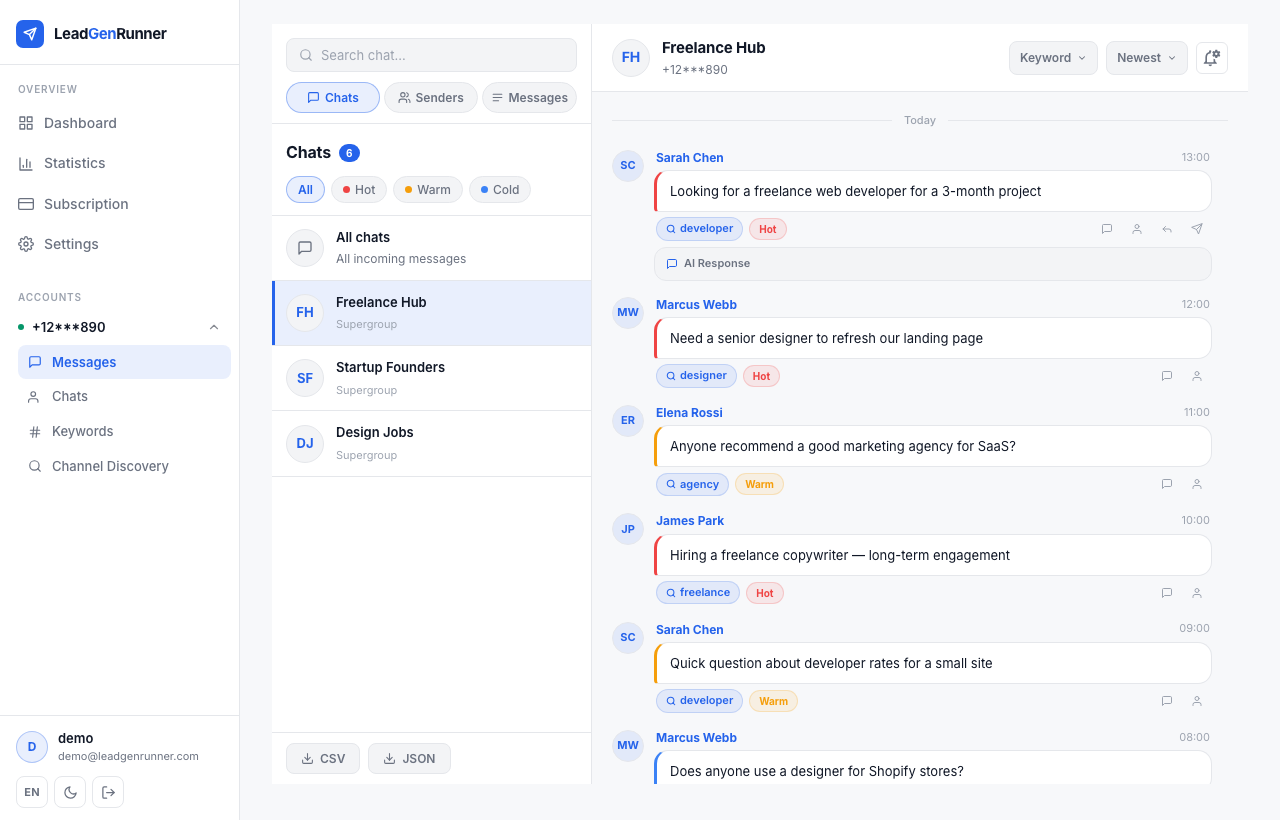
Drill into a single chat
Click any chat on the left to filter the feed down to just that conversation. The header shows which chat you're in, and you can jump back to all chats with one click.
5
Step 5
Reply straight from the inbox
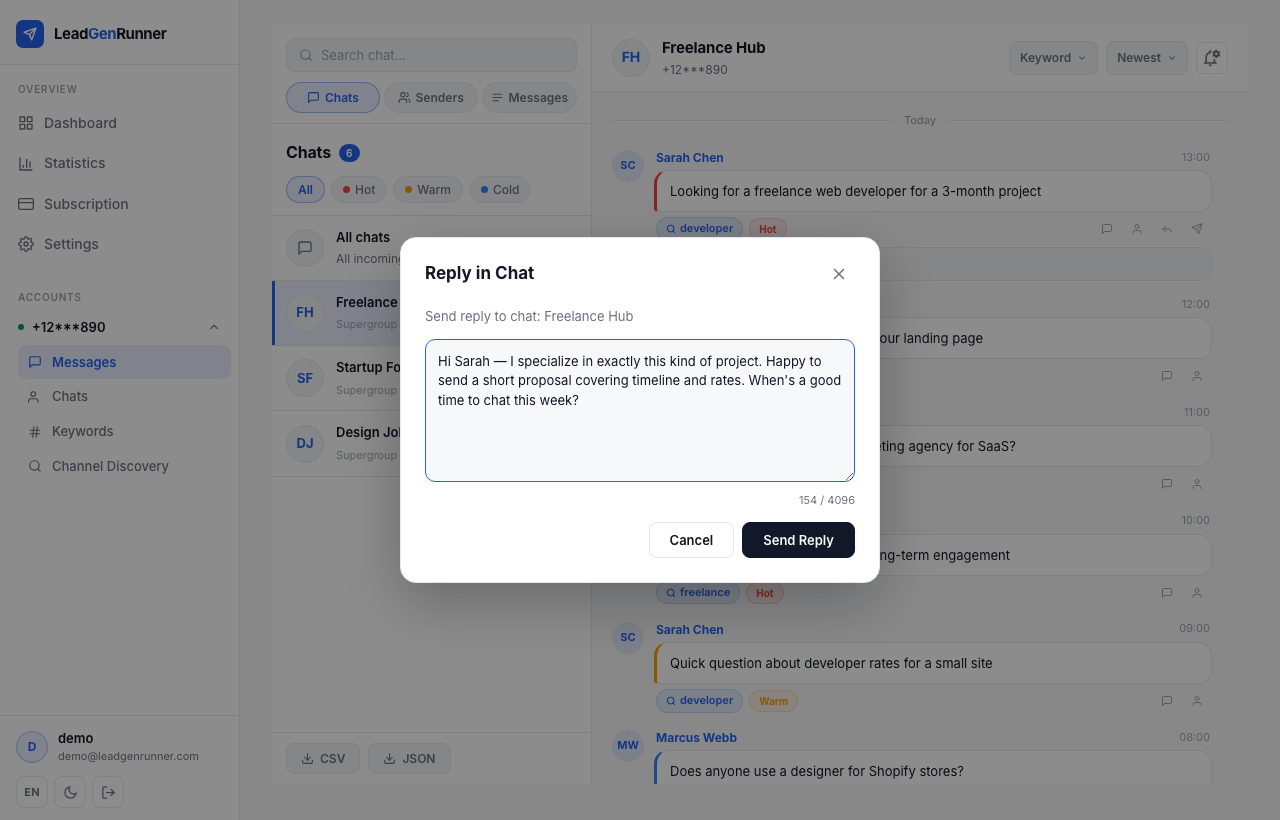
Open any message and hit the reply button to send directly to the chat or to the sender's DMs. The AI-suggested reply is pre-filled — edit it before sending, or send it as is.
Ready to try it yourself?
Start a free plan and see your first leads within minutes.
Start free