Dashboard & setup
From first log-in to an authenticated Telegram account, step by step.
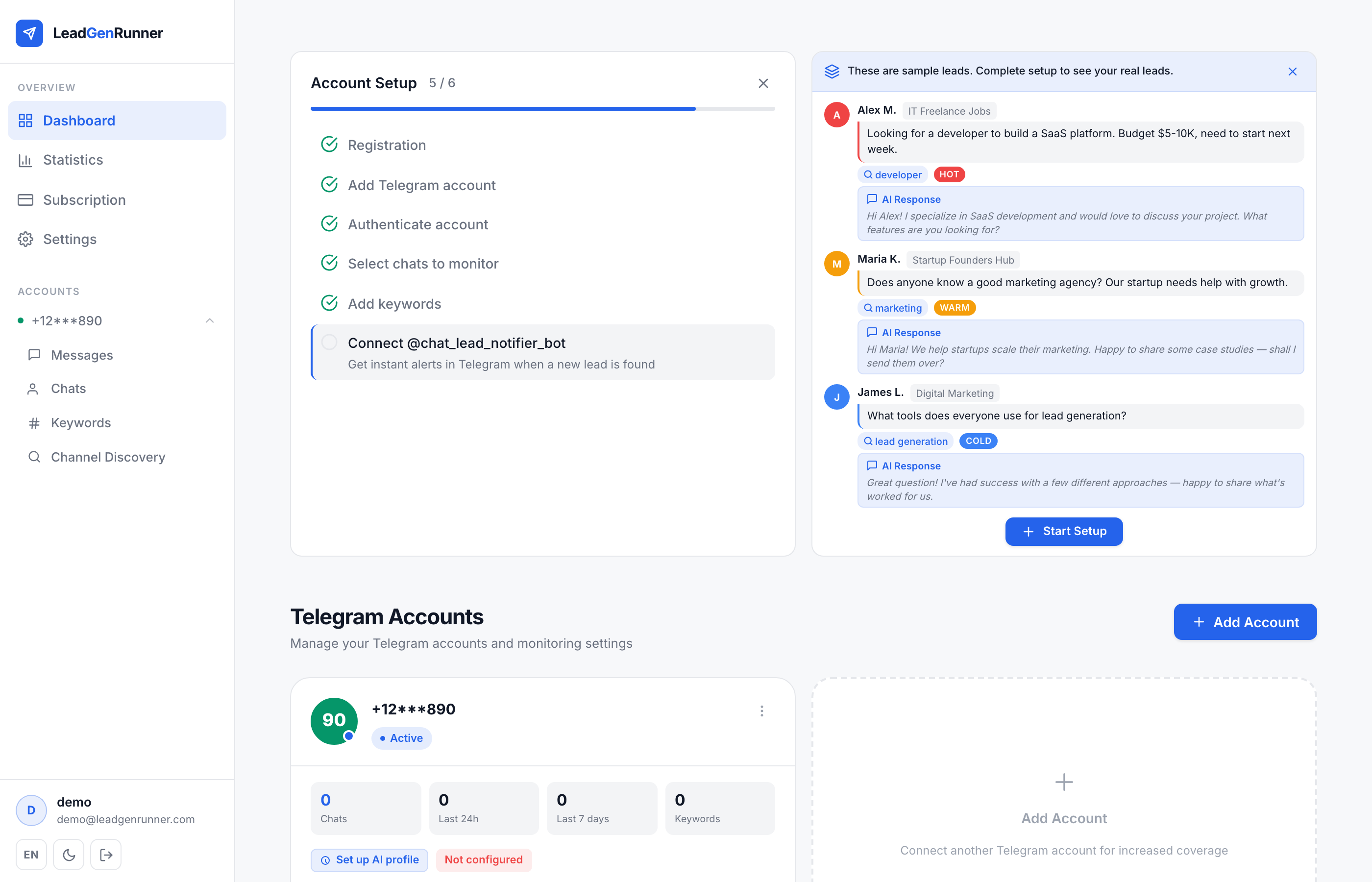
First look: Account Setup checklist and demo leads
When you log in for the first time, the dashboard shows two things: a six-step Account Setup checklist and a sample Inbox on the right so you can see what leads will look like.
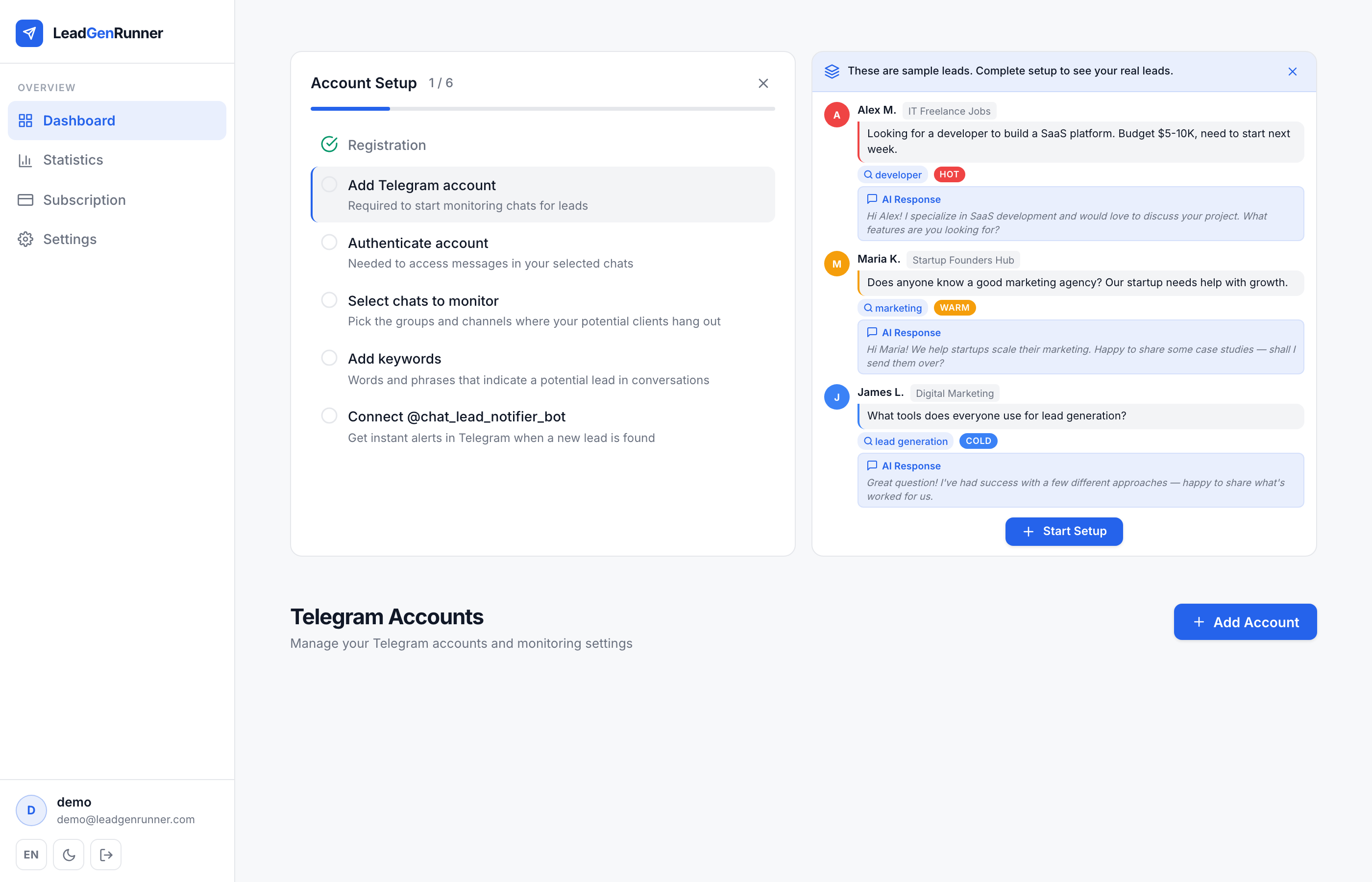
Add a Telegram account — your phone number is the key
Click Add Account and enter the phone number that belongs to your Telegram account — include the country code.
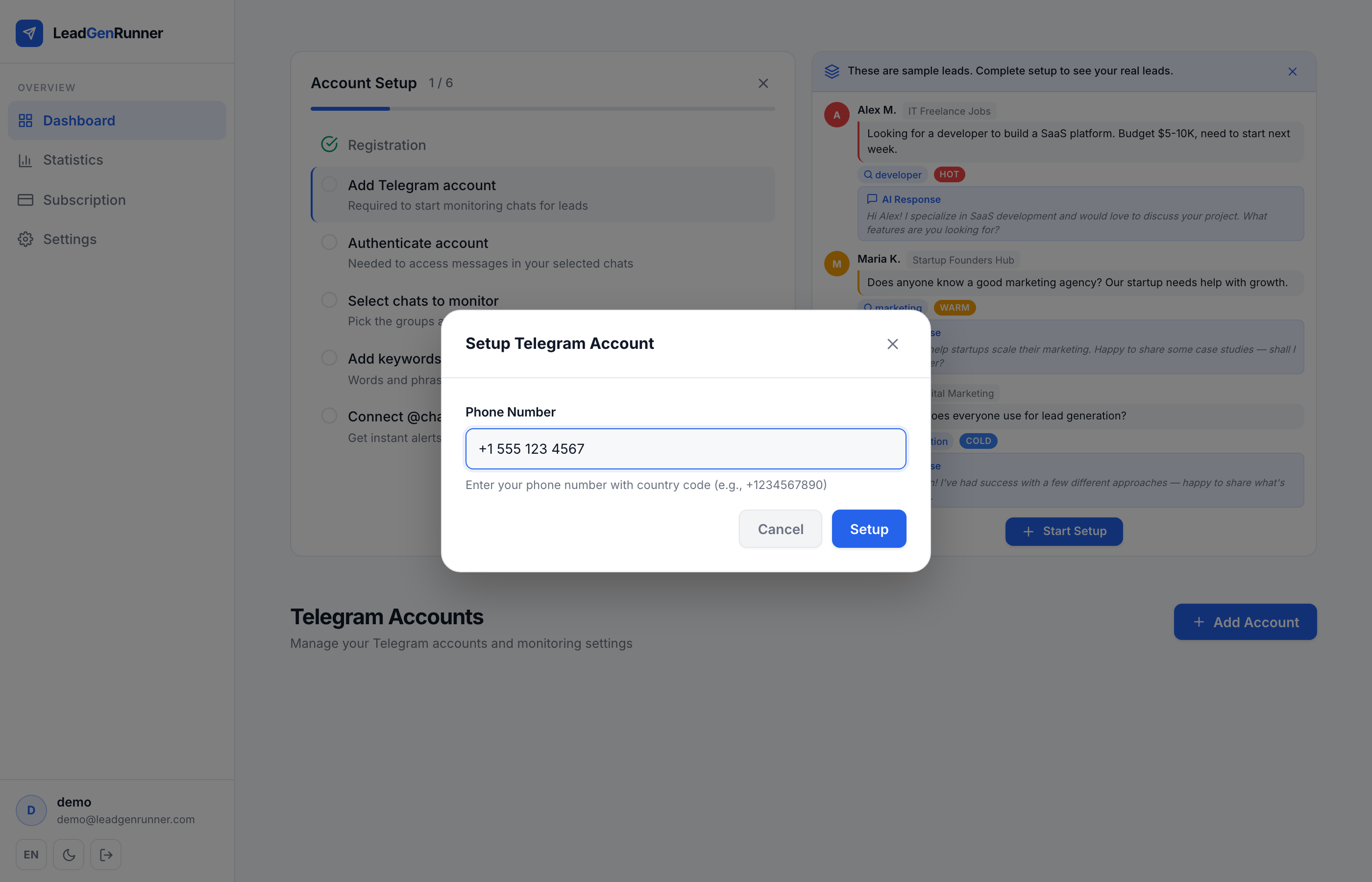
Authorize with a Telegram code or QR scan
Pick how Telegram should verify you. Code is the classic path; QR scan is faster if you already have Telegram open on your phone.
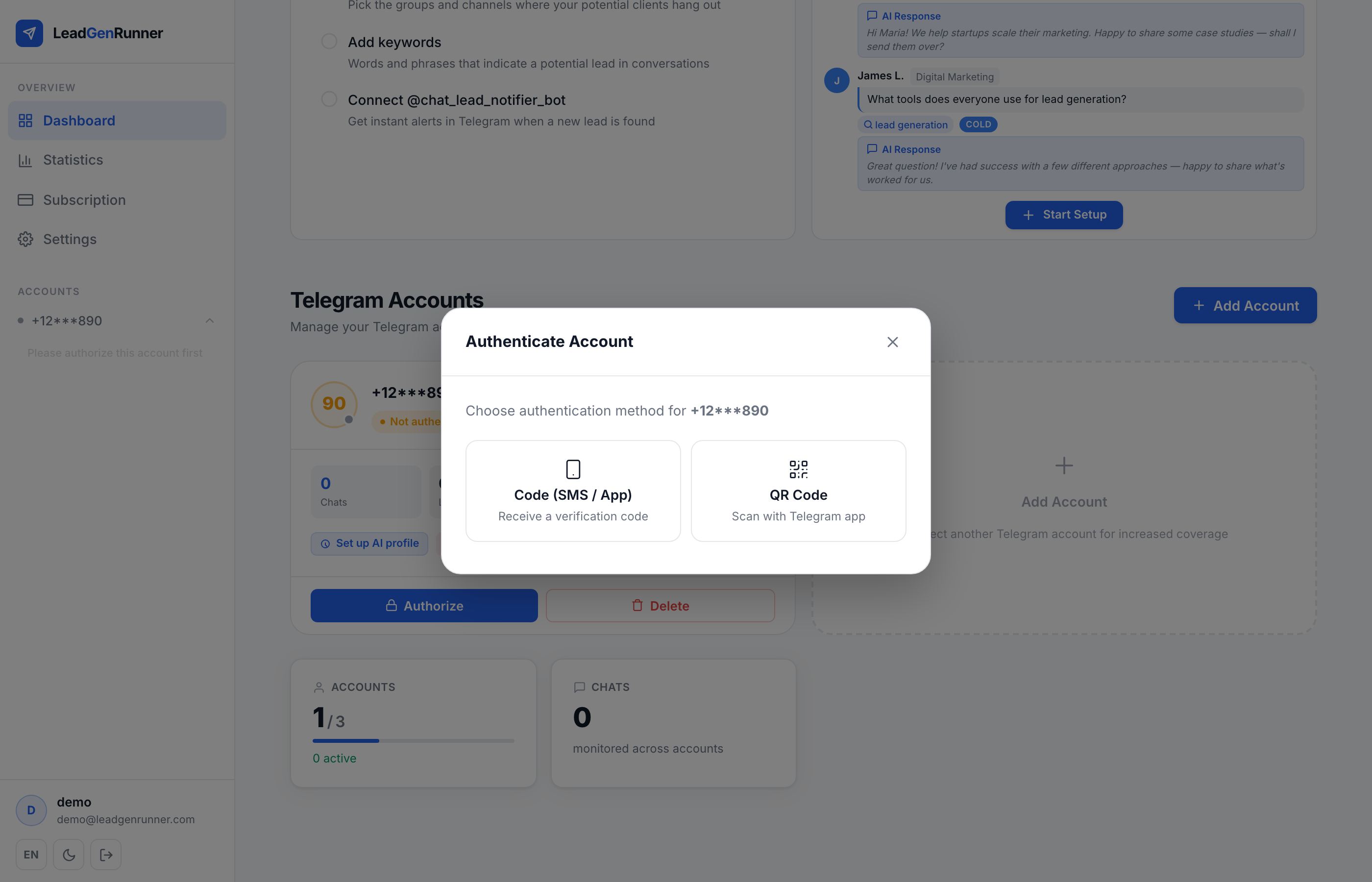
Pick the chats LeadGenRunner should watch
Open Chats from the sidebar. Every group or channel your Telegram account is in shows up here — tick the ones where your potential clients talk.
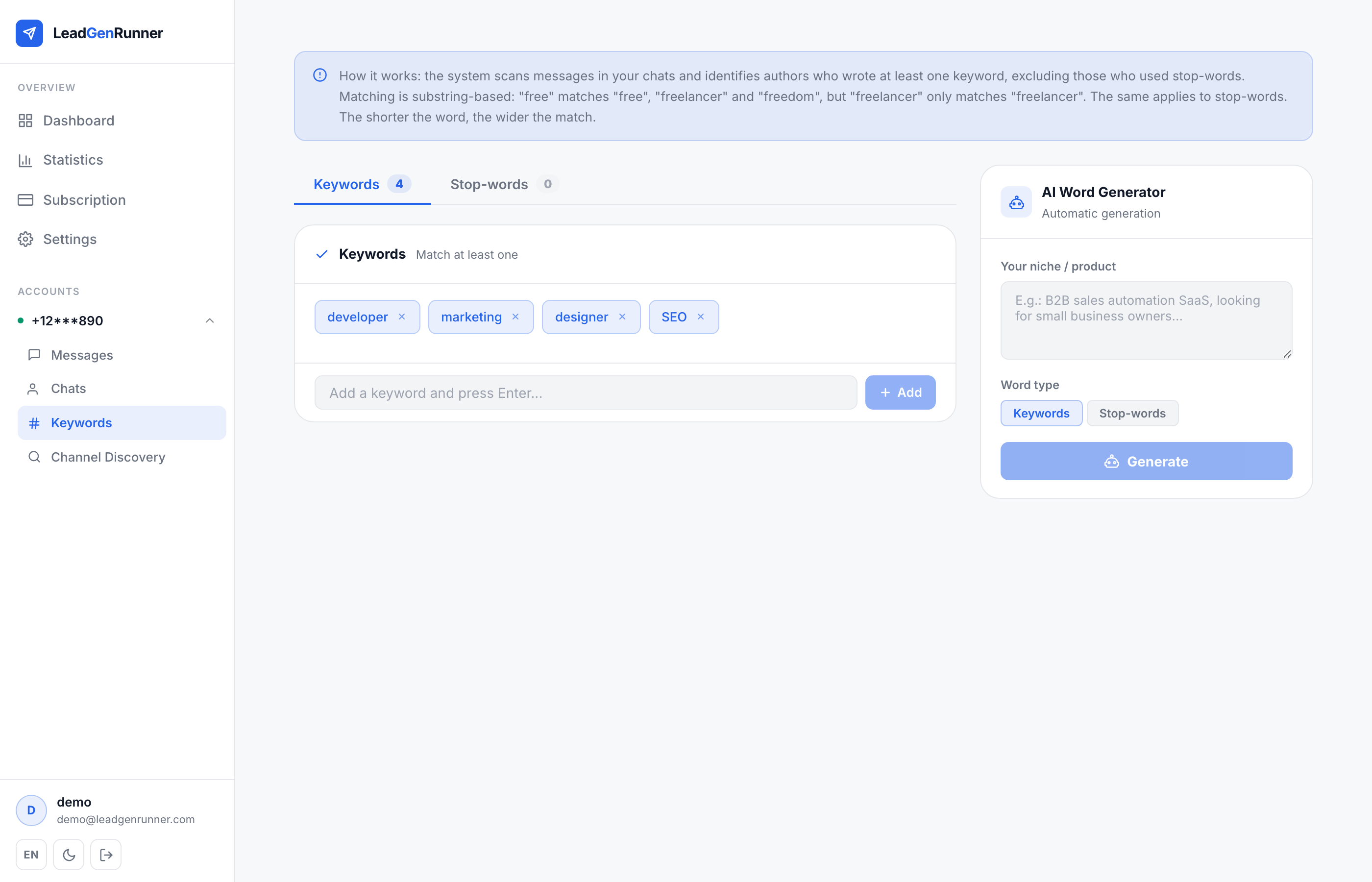
Add the keywords that define a lead
Switch to Keywords and type 5–10 phrases that signal someone is looking for what you sell. Use the next tab to add stop-words that filter out obvious noise.
Connect the alert bot in Telegram
The last checklist item connects @chat_lead_notifier_bot — it pushes every new matched message straight to your Telegram. One click opens Telegram and links the bot to your account.
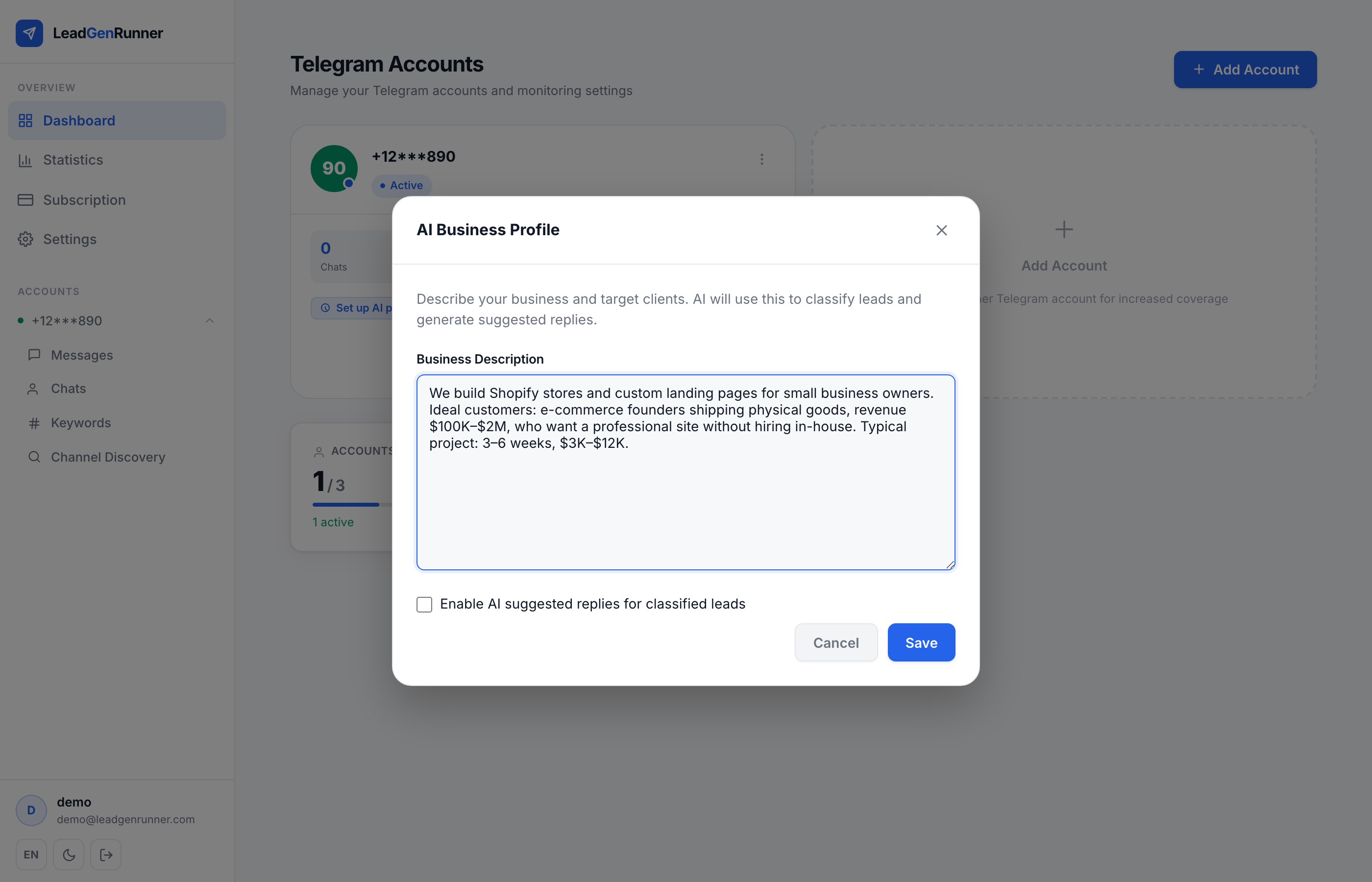
Describe your business so AI can classify leads (Business plan or higher)
On the Business plan or higher, open the Business Profile from the account card. The AI uses this description to tag every match as hot, warm or cold — and, if you enable it, to draft a reply for each hot lead.
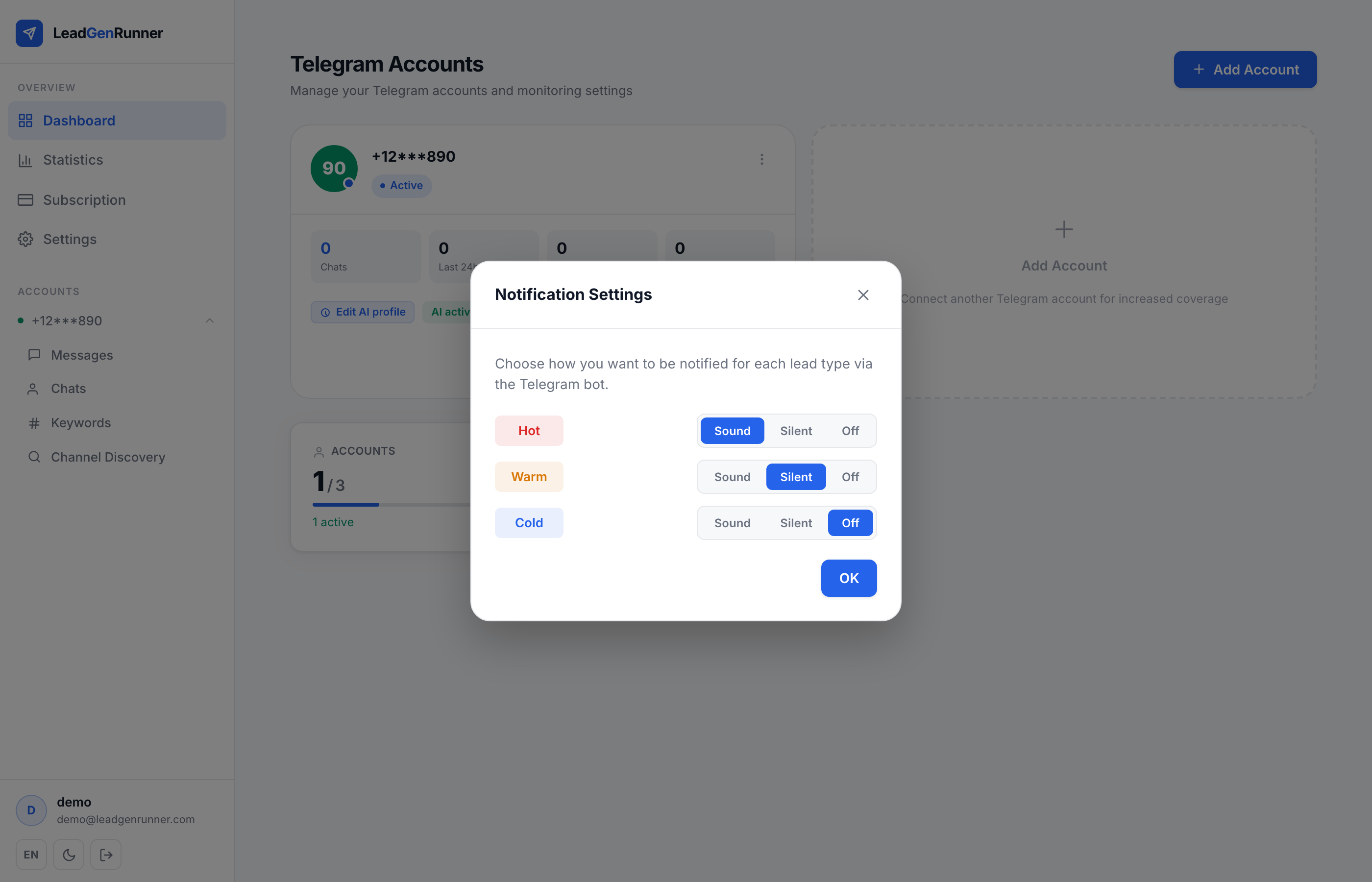
Decide how loud each lead type should be (Business plan or higher)
Open Notification settings from the account card. Pick per classification — push for hot, silent for warm, off for cold — or any combination that fits your day.
Ready to try it yourself?
Start a free plan and see your first leads within minutes.
Start free